
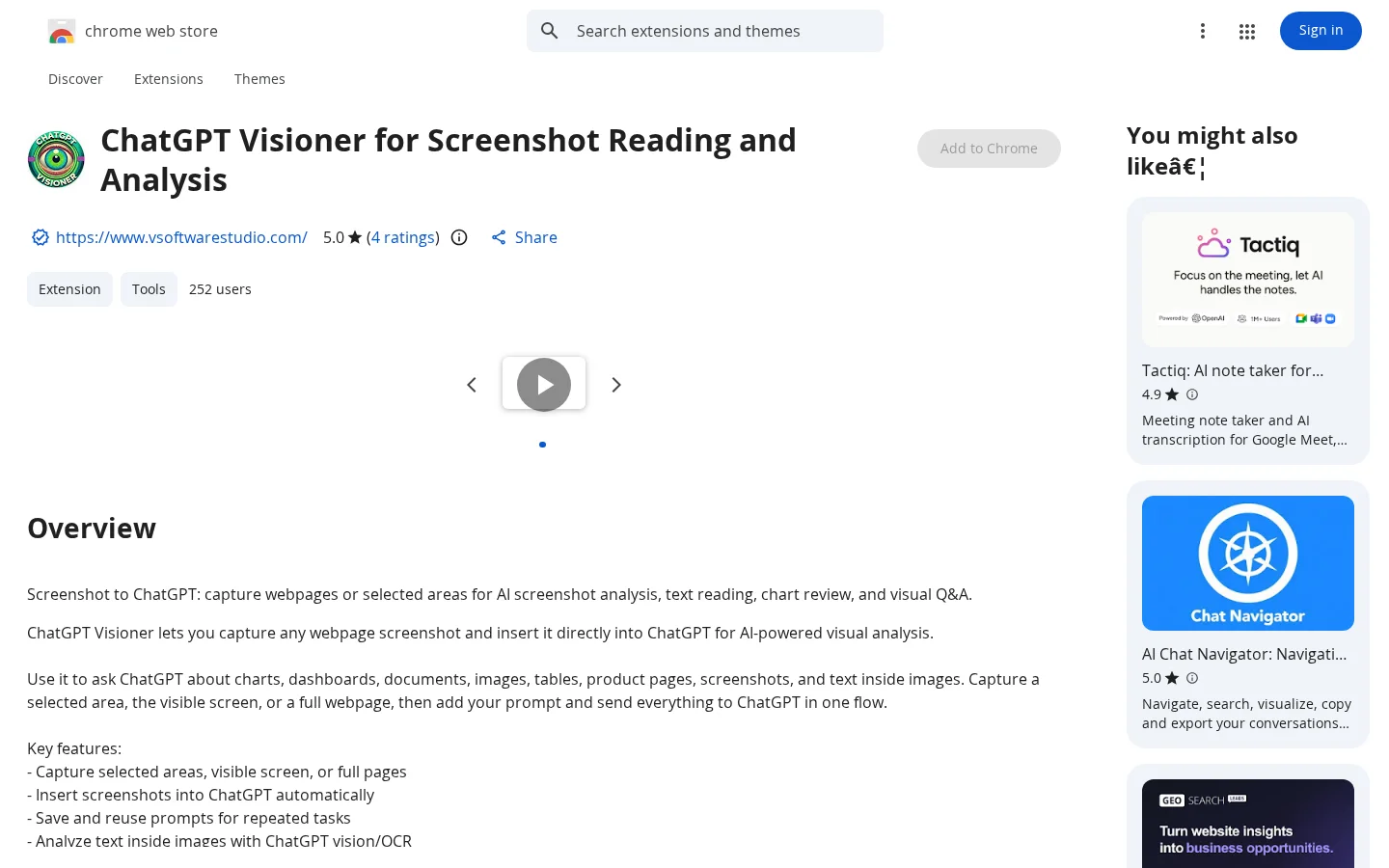
What is ChatGPT Visioner?
ChatGPT Visioner enables capturing any web page screenshot and automatically inserting it into ChatGPT for AI-powered visual analysis. It can be used to interpret charts, dashboards, documents, images, tables, product pages, screenshots, and text embedded within images. Users can freely choose to capture selected regions, the currently visible screen, or an entire web page, add custom prompts, and then send everything to ChatGPT with a single click, completing an end-to-end visual Q&A workflow. This tool prioritizes privacy: the developer neither collects nor sells user data, and all screenshots are sent exclusively to the user’s personal ChatGPT session.
Key features
Supports capturing selected regions, the currently visible screen, or full-page screenshots
Allows automatic insertion of screenshots into ChatGPT and invokes its vision/OCR model to recognize text within images
Use cases and audience
Ideal for users who need rapid AI analysis of visual content such as web pages, charts, and documents, including researchers, product managers, data analysts, and students
- Send web page screenshots, charts, dashboards, or images containing text to ChatGPT for visual analysis and Q&A
- AI-assisted interpretation and information extraction from product pages, document screenshots, or tables
- Repeatedly fine-tune prompts to optimize ChatGPT’s understanding of the screenshot content
Web page screenshots (selected regions, visible screens, or entire pages), along with custom text prompts
ChatGPT conversation results with attached screenshots; supports exporting as Word documents (with images saved separately)
Frequently asked questions
Do you need a subscription to use this feature?
Basic features require no subscription; all features include a 7-day free trial, after which in-app purchases are required to unlock them.
Will this extension collect or upload my screenshot data?
No. The developer states that they do not sell your data nor use it for purposes unrelated to core functionality.
How to use
- 01
Click the ChatGPT Visioner icon in your browser toolbar and select the screenshot area (selected region/current visible screen/full page)
- 02
In the pop-up window, enter a custom prompt (e.g., “Please summarize the trend shown in this chart”)
- 03
Click Send, and the screenshot along with the prompt will automatically be inserted into your currently logged-in ChatGPT session
- 04
You can export the complete conversation record (including separate image files) as a Word document
Pricing and availability
A 7-day free trial is provided to access all features; basic ChatGPT-related functions require no subscription; the app uses an in-app purchase model, with no specific pricing, subscription periods, or commercial licensing details disclosed.
- Pricing source
- https://chromewebstore.google.com/detail/chatgpt-visioner-for-scre/gmckkjioaelolodmmfnmcjdadimnhacn
- Pricing last updated
- 2026-10-30
Prices and limits may change. Check the official website for current terms.
Official website & sources
Updated on 2026-10-30


